


Document review and approval

Submittals as easy as email. One record, the way ISO 19650 asks.

Any company on your project can send shop drawings, product data, samples or your own forms to anyone, with no approval chains to set up first. Every email, comment and decision lands on the same record.

See how a submittal moves

Projects running submittals on AECIS
Submittals demo: one submittal from first email to a QR-stamped decision
One submittal from first email to a QR-stamped decision. It plays muted; turn the sound on for quiet guitar.

Submit once. Everyone gets it by email. Any firm replies by email. One thread. A review decision, QR-stamped. Your own forms take the same path. On site: the field app.

Every firm on one record

Three everyday situations on a project, and how each one runs.

1Working with outside firms0:02 in the video

Sent in the system, delivered by email

The subcontractor submits the shop drawings in the system, to the reviewer it works with at any firm. The system emails it out with a link to the record, and every reply comes back to it. There is no approval chain to set up first.
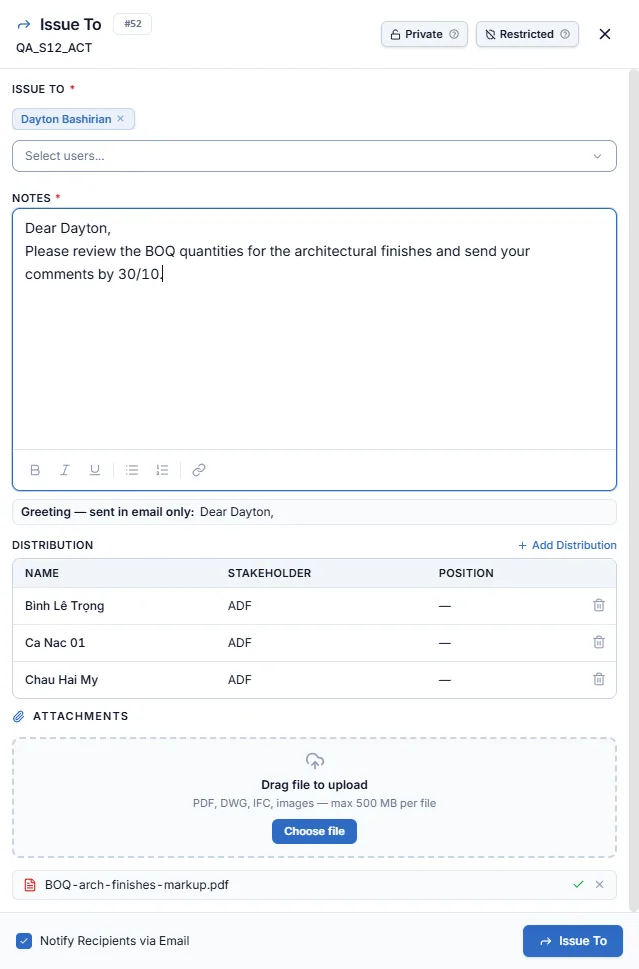
Issue To: the reviewer brings in people from any firm
2Following the conversation0:05 in the video

One thread, from first email to final decision

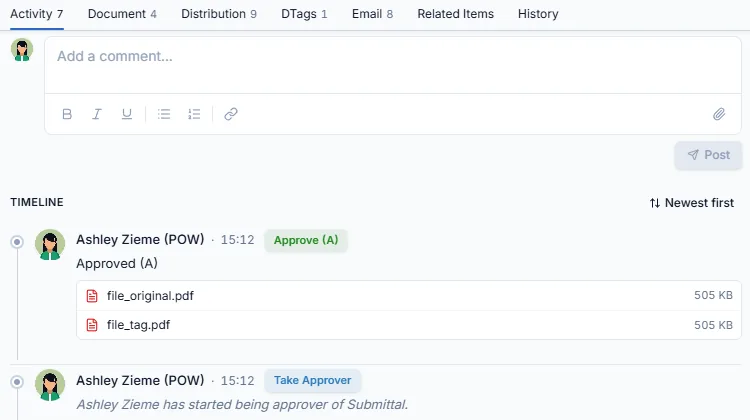
Comments, @mentions, decisions and email replies sit on one timeline, so the whole history of the submittal is in one place. An email that went around the system can be forwarded in, so nothing stays outside.

The submittal's activity timeline
3Using your own procedures0:17 in the video

Your own forms, on their own layout

Your material approval, method statement or site minutes form keeps its own PDF layout, logo and fields. It is filled and signed in the system on that layout, then sent as a submittal, with the same review, stamp and record as any other.

0:11 in the video

Digital review decision

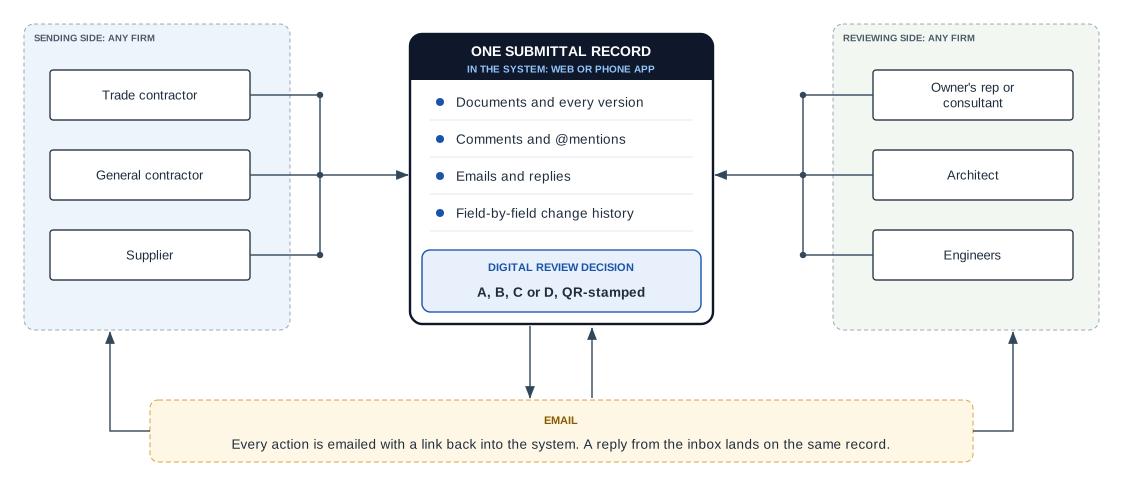
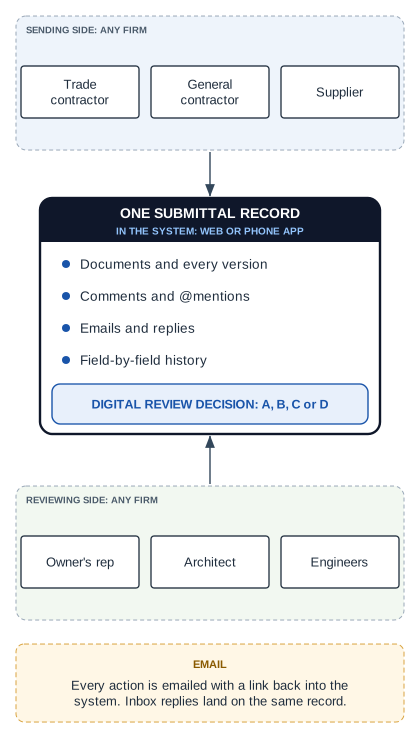
Firms on both sides submit, review and decide in the system; the digital review decision sits on one submittal record; email links back into it and inbox replies land on the same recordSending firms, one submittal record in the system with the digital review decision, reviewing firms, and email linking back into it
Work happens in the system, on the web or the phone app. Every email links back into it, and a reply from the inbox lands on the same record.

One decision. As many reviewers as the work needs.

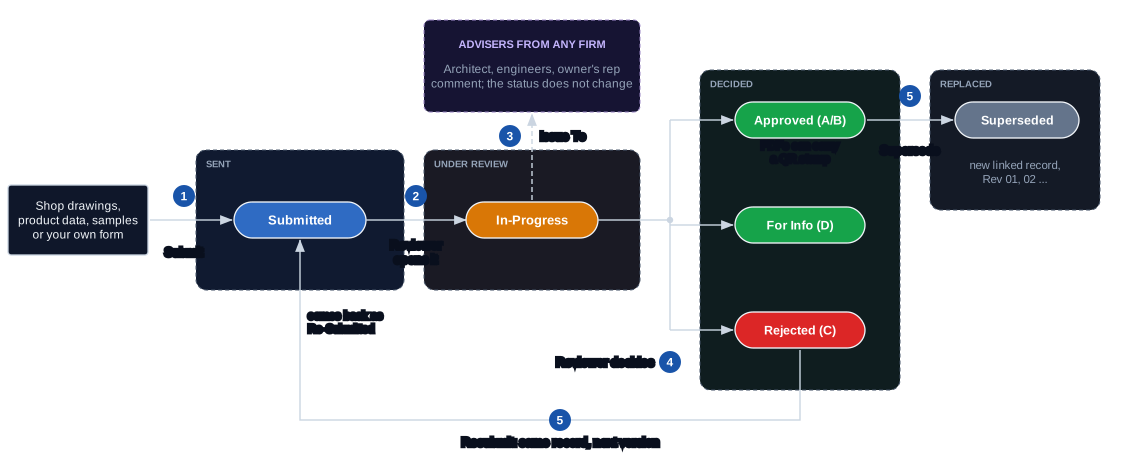
Submittal status flow in five steps: submit, acknowledged, bring in the experts, decide A to D, resubmit or supersede
  1. 1

    Submit

    Sent to one reviewer, with a due date. Email goes to everyone on the distribution list.

  2. 2

    Acknowledged

    When the reviewer opens it, it moves to In-Progress and the record shows it.

  3. 3

    Bring in the experts

    The reviewer issues it to the architect, the engineer or the owner's rep. Their comments are recorded; they don't change the status.

  4. 4

    Decide

    A Approved, B Approved as noted, C Revise and resubmit, D For information. Approved PDFs can carry a QR stamp.

  5. 5

    Resubmit or supersede

    A returned submittal comes back on the same record as the next version; a replaced one is superseded, and both stay linked.

Full rules: the Submittal guide on help.aecis.com

ISO 19650 workflows on everyday email

ISO 19650 asks for one controlled record of every exchange. Every firm keeps working by email, and every exchange still ends on that record.

One controlled record

People talk by email, but the files, versions and decisions stay on the submittal record, the project's common data environment (CDE).

Every email links back

Each notification carries a link to the live record, so reviewers open the current version, not an old attachment.

Who did what, and when

Submissions, comments, emails and decisions build one dated history, with a field-by-field change log.

An easy start for every firm

Firms new to the system can answer from their inbox at first; every email links them back into the record.

Supports ISO 19650 workflows; not certified against the standard.

Everyday questions, answered on the record

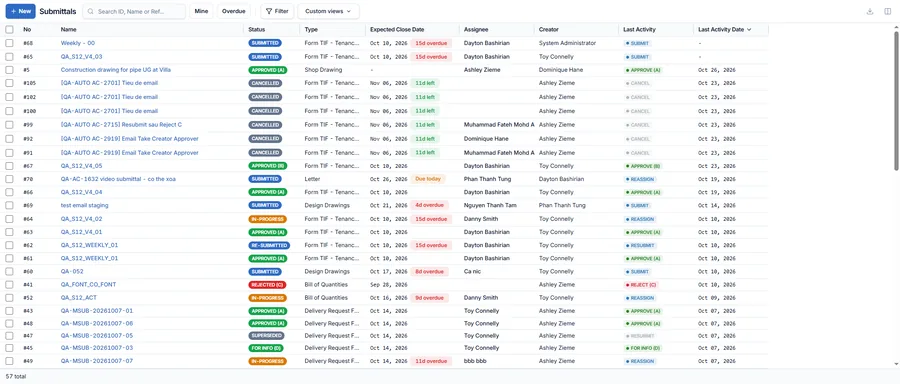
Submittal list with status colours and due-date badges

Who has it, and when is it due?

When it was opened, whose turn it is, and the days left or overdue. Filter to Mine or Overdue.

Which revision is current?

Resubmissions stay on the record, superseded ones link to their replacement, and stamped originals never move.

Is this printed copy the approved one?

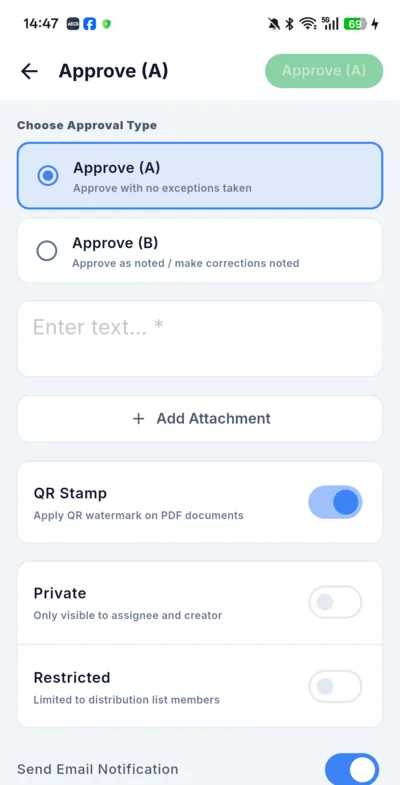
A QR stamp on each approved PDF leads back to its approval record. Place it in your own title block with the #aecisqr tag.

Can this review stay between us?

Keep a submittal to the people on it, or keep the reviewers' discussion apart from the submitter.

The phone app's Approve form, with the QR Stamp switch

Can I answer from site?

Create, decide, stamp or comment from the phone app. With no signal, comments and decisions wait and send when you reconnect; files go up once you are online.

Also included

  • Reassign or issue many submittals at once
  • PDF and Excel logs, filtered your way
  • Email on every action, or not, your choice
  • Links to related issues and risks

Try it on your next submittal

Start your project and send the first submittal yourself, or book a 20-minute demo and we will set it up on your project with you.

Before the first submittal

Questions reviewers ask

What architects, consultants and owner's reps ask us most, answered in a line or two.

Still have a question?

The Submittal guide walks through every action, or we can show it on your project.

How do outside firms take part?

In the system, on the web or the phone app, or straight from the email they receive. Either way, their reply lands on the same submittal record.

Does this work as our common data environment (CDE)?

Yes. Each submittal, with its files, versions, comments, emails and decision, stays on one project record: the common data environment ISO 19650 describes. Firms who reply by email still end up on that same record.

What does the QR stamp do?

It links each printed or downloaded copy to its approval record. Scan it with the phone app to open that record and see the decision.

Where can we create submittals?

Anywhere: on the web or in the phone app. On the phone you can also review, decide, stamp and comment.

Other features

9 features are included in 1 platform - easy access, easy manage your projects.