


The GC's update moves Level 8
In the GC's own schedule update, the Level 8 curtain wall install moves later.
The project manager keeps it current in the browser; the project's other roles with read access view it and export it.
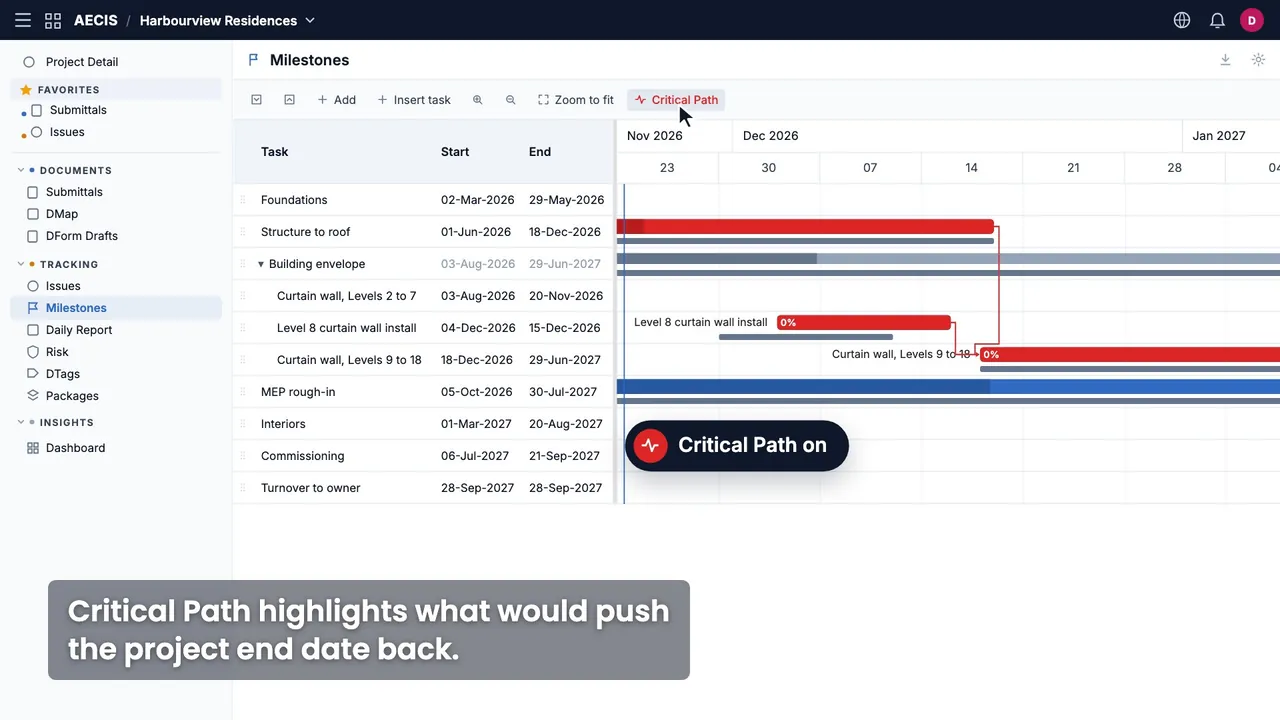
The project's milestone schedule, in the browser. In the GC's own schedule, the Level 8 curtain wall moves later. The project manager enters the GC's revised dates. Critical Path highlights what would push the project end date back. Before the owner meeting, the project manager exports the schedule to PDF. Delay is derived from the latest milestone end.
Monday, November 23, on Harbourview Residences: Jordan, the general contractor (GC), sends his schedule update, and Dana, the project manager, enters the revised dates in the milestone schedule.
In the GC's own schedule update, the Level 8 curtain wall install moves later.
The project manager enters the revised forecast date in the browser; the parent rolls up at once.
With the baseline on, the bar sits past its slate baseline. Critical Path highlights it in red.
The project manager enters the revised turnover date too. The Dashboard's Delay, derived from the latest milestone end when no manual Delay value is set (a manual value wins), changes at the next refresh. Before the owner meeting, the project manager exports the schedule to PDF.
Enters the revised dates from the GC's update.
Checks the Level 8 install on the Critical Path.
Plans his crew for the Level 8 window.
Follows the curtain-wall rows for her field reviews (site observations).
Reads Turnover to owner and the Delay figure.
Every role on the project reads the same schedule and can export it; the Project Manager role adds and edits.
Once a Grand Opening date is set, the Dashboard's Delay figure is derived from the latest milestone end when no manual Delay value is set. A manual value wins.
The Delay figure needs milestone read access. Watch the demo
The Project Manager role adds and edits; Administrators and Project Admins also delete. The project's other roles with milestone read access view it and can export it.
Once a Grand Opening date is set, it is derived from the latest milestone end when no manual Delay value is set: latest milestone end minus the Grand Opening date, in days. A manual value wins. More on the Dashboard
The milestones whose slip would push the project end date back, highlighted in red.
Milestones turns read-only and the edit tools are hidden.
Export to Excel, PDF or MPP XML; import from MPP XML. Export and import on help.aecis.com
Web only, with no mobile version. Schedules import from MPP XML.
Start your project and enter the first milestones yourself, or book a 20-minute demo and we will set it up on your project with you.
What owners, consultants, contractors and trades ask most, answered in a line or two.
The Milestones guide on help.aecis.com covers adding and editing milestones, links, Critical Path and export, or we can show it on your project.
Predecessor links with lag, a baseline, and Critical Path to highlight the milestones whose slip would push the project end date back. Detailed scheduling stays in the scheduler's own tool.
MPP XML.
In the browser. Milestones is web only, with no mobile version.