

Can I work in the basement?
Work the whole day with no signal. On the phone, new issues, actions, comments and files wait in a queue and send when the signal is back; a clash is flagged to discard and redo.
Walk the floor: tap the spot, take the photo, save a draft and keep walking. Back at the site office, Auto Fill does the rest.
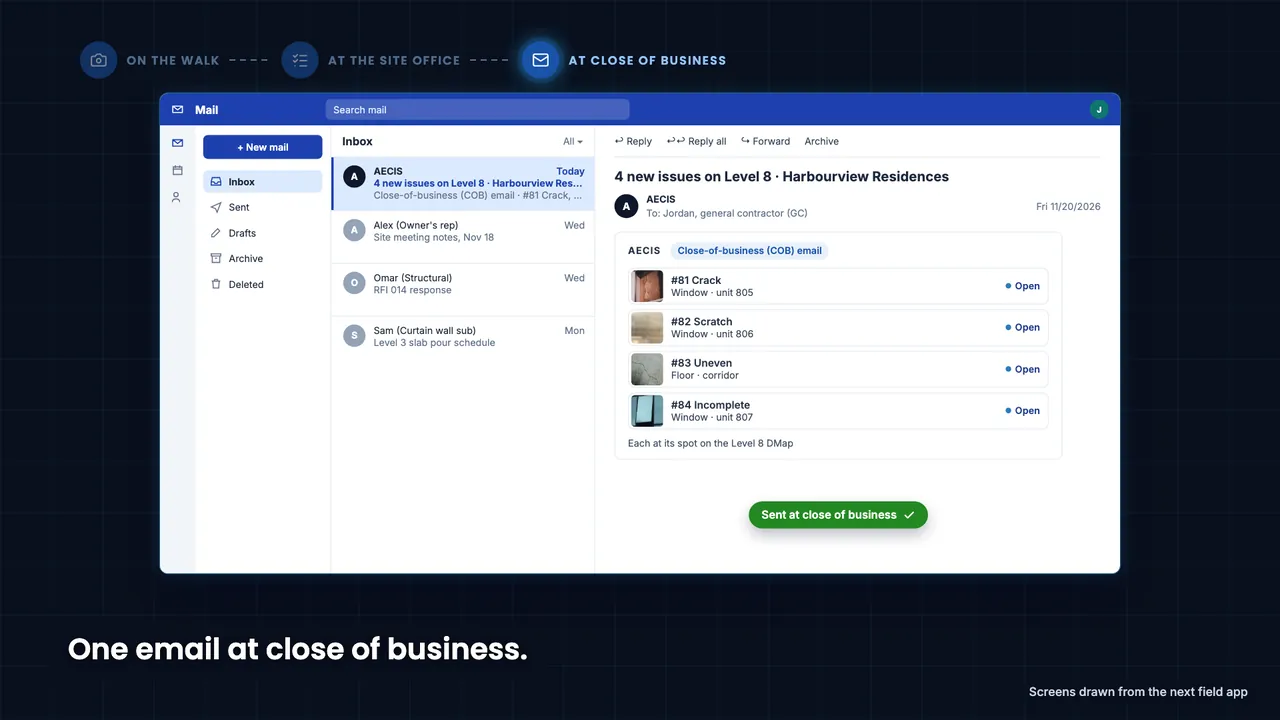
Priya, consultant, walks Level 8 on its DMap (digital map). Snap, save a draft and move on. Screens drawn from the next field app. Assigned to Jordan, general contractor (GC). Pick the defect; title and description fill in. Tap Auto Fill, pick the defect, submit. One email at close of business. Log the punch list as fast as you walk it.
Log now, classify later: one pass to classify and assign the whole batch, with one email at close of business.
Tap the spot on the DMap and the camera opens at once. Take the best shot, or several; a single photo can be marked up. Save as draft and move on: the spot, the photo and the markup are recorded.
Open a draft and pick from the defect list: the pick fills the title with the defect and the description with its path. On the next draft, Auto Fill copies the type, assignee, due date and the rest from the previous issue.
The close-of-business notification is on by default for a new DMap issue in the field app. Every issue is then tracked until it is closed.
Then the Issue flow: the contractor marks each one done with a photo, and the side that raised it checks it and closes it. More on Issues
Phone screens are drawn from the next field app. The DMap guide on help.aecis.com
Every pin is an issue, coloured by where it stands. Filter the floor to what is overdue and walk it.
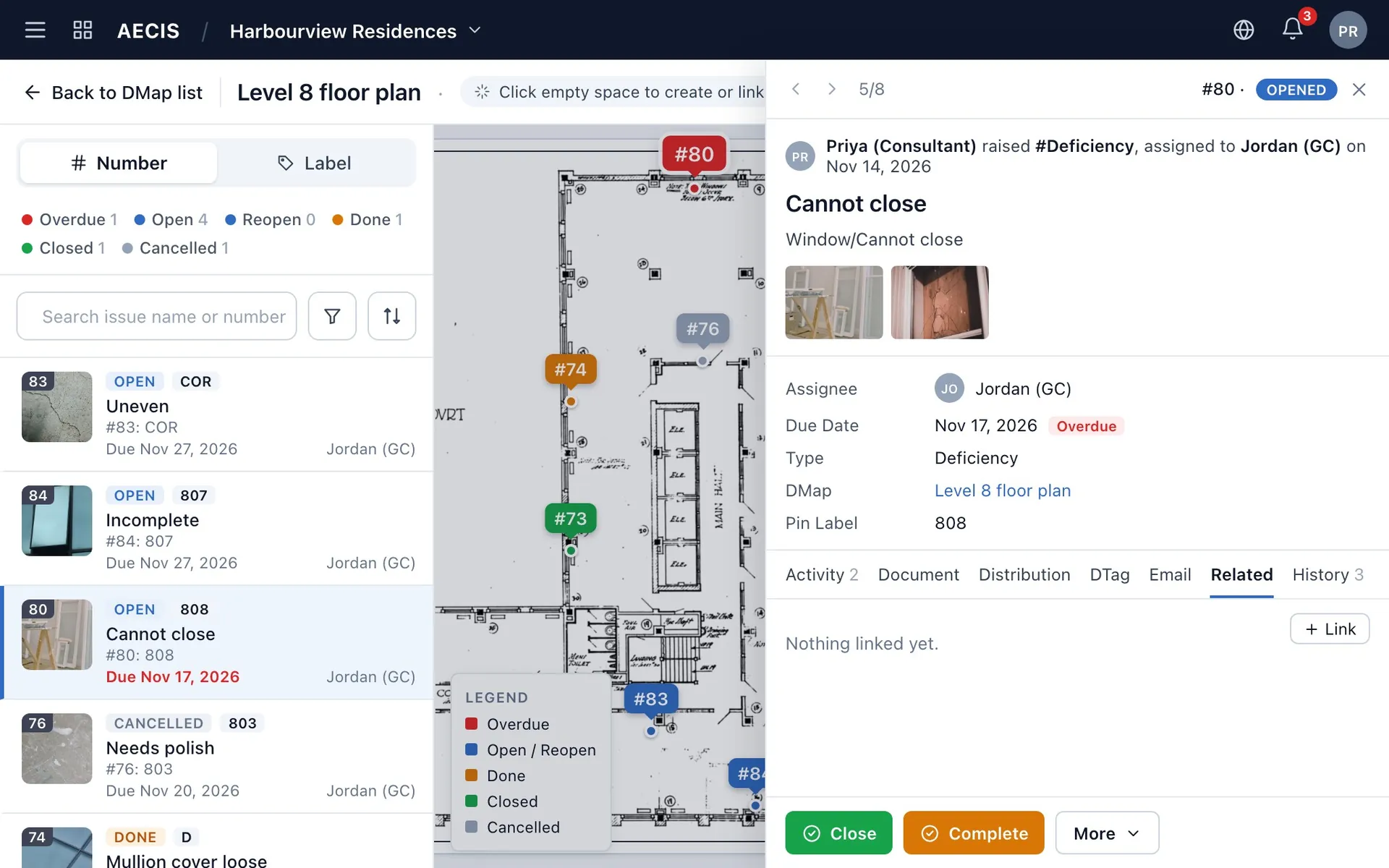
Filter the drawing to what is overdue, and the pins and the cards follow together.
Hover a pin or its card to see the photo, the status and the due date.
Open the issue from its pin and act on it without leaving the drawing. From the pin, an issue's related submittals, issues and risks are one tab away.
Click an empty spot on a drawing to create an issue there, or pin an issue that already exists; drag a pin to move it.
Download the floor before you leave the site office. With no signal, the drawing, its pins and anything you capture stay with you, and it all sends itself when you are back online.
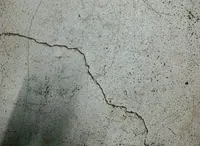
Stand in front of the crack, tap the spot on the drawing and take the photo. The issue is raised, and its pin is already where you tapped.
Work the whole day with no signal. On the phone, new issues, actions, comments and files wait in a queue and send when the signal is back; a clash is flagged to discard and redo.
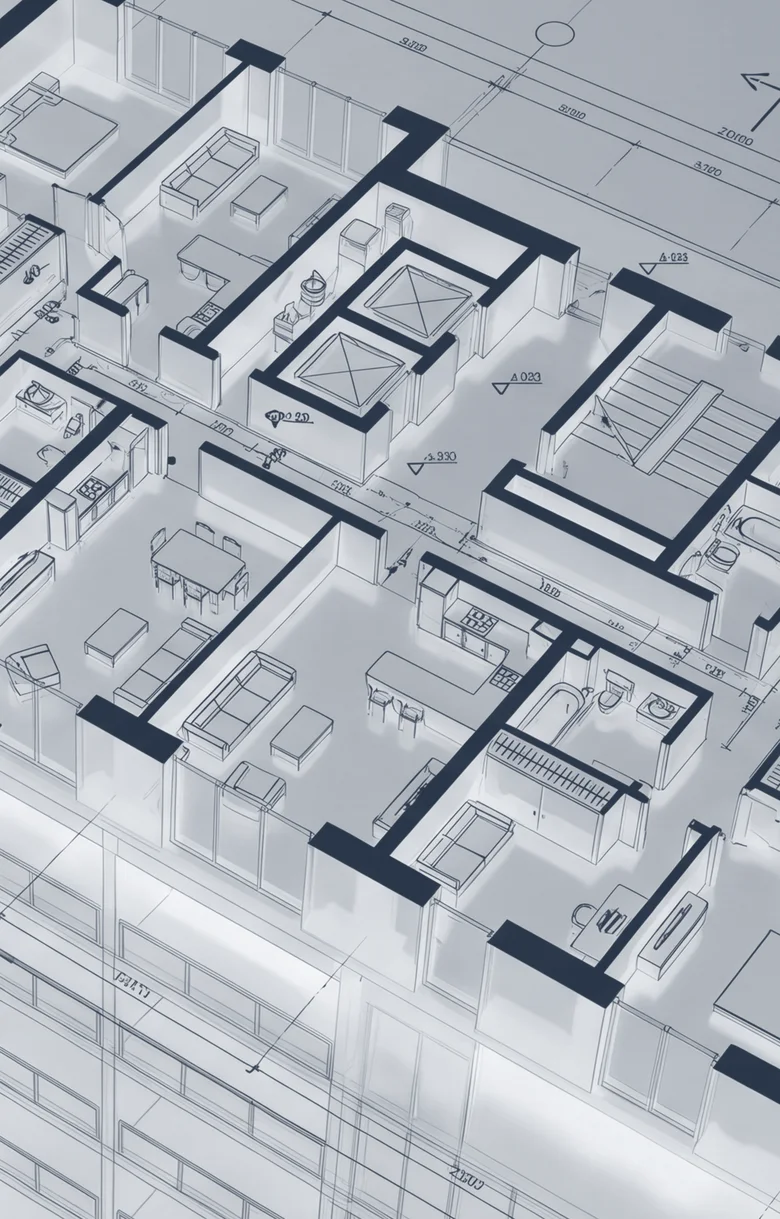
Every pin is an issue, placed at its exact spot on the drawing. The pin is a spot on the drawing, not a GPS location, so it stays in place indoors and underground.
Start your project and upload the first drawing yourself, or book a 20-minute demo on your own project.
What owners, consultants, contractors and trades ask most, answered in a line or two.
The DMap guide walks through every step, or book a demo on your own project.
Upload a drawing sheet as a PDF, one sheet at a time, and it becomes a map to pin issues on. Give it a name, a drawing set and a discipline.
Pick the defect from a list and the title and description fill themselves. Everything stays editable.
Drag a pin to move it. Moving a pin is recorded in the issue's History. Take a pin off a drawing and the issue stays on the project.
The same DMaps and pins on the web and on the phone. With no signal, anything you capture stays with you, and it all sends itself when you are back online.